

TL;DR
The Entra ID Guest Report is rebuilt. Every guest account now gets a Remove / Review / Keep recommendation, with the reasons shown.
Start with the quick wins: guests with an old pending invitation and guests who never signed in. You can change the thresholds with parameters.
Filter the report, click Export for deletion and upload the file to Entra bulk delete. The script itself never deletes anything.
Run it on a schedule. An Azure DevOps pipeline is included.
It is fast by default: about 2 minutes for 10k guests. Add
-IncludeAccessDetailsfor groups, Teams, apps and sponsors (about 30 minutes).It is mainly for organizations without guest governance (for example access packages).
Some time ago I wrote about a script for guest accounts in Entra ID. Later I rebuilt my Enterprise App report, and it worked well. So it was time to do the same for the guest script. This time I wanted more than a list of accounts. I wanted help with the cleanup.
Why guest hygiene matters?
Guest accounts often stay in the tenant for years. A project ends, an invitation is never accepted, or the person leaves their company. Nobody removes the account. It still has its groups, Teams and application access, even if the person never signs in.
In my opinion, this is one of the more important hygiene tasks.
Would we notice if one of these old accounts was misused?
The script is mainly for organizations that do not have guest governance yet. If you already use access packages in Entitlement Management for onboarding and offboarding, that part is covered. If you do not, this report shows you what you have.
What is new
Cleanup recommendation. Every guest gets Remove, Review or Keep, with the reasons shown.
Export for deletion. One click exports the Object IDs of the guests you filtered. You can use the file in Entra bulk delete.
Scheduled runs. An Azure DevOps pipeline is included (
azure-pipelines.yml).Faster by default. Group, Teams, application and sponsor details are optional with
-IncludeAccessDetails.Directory roles. Active and eligible (PIM) roles are always reported.
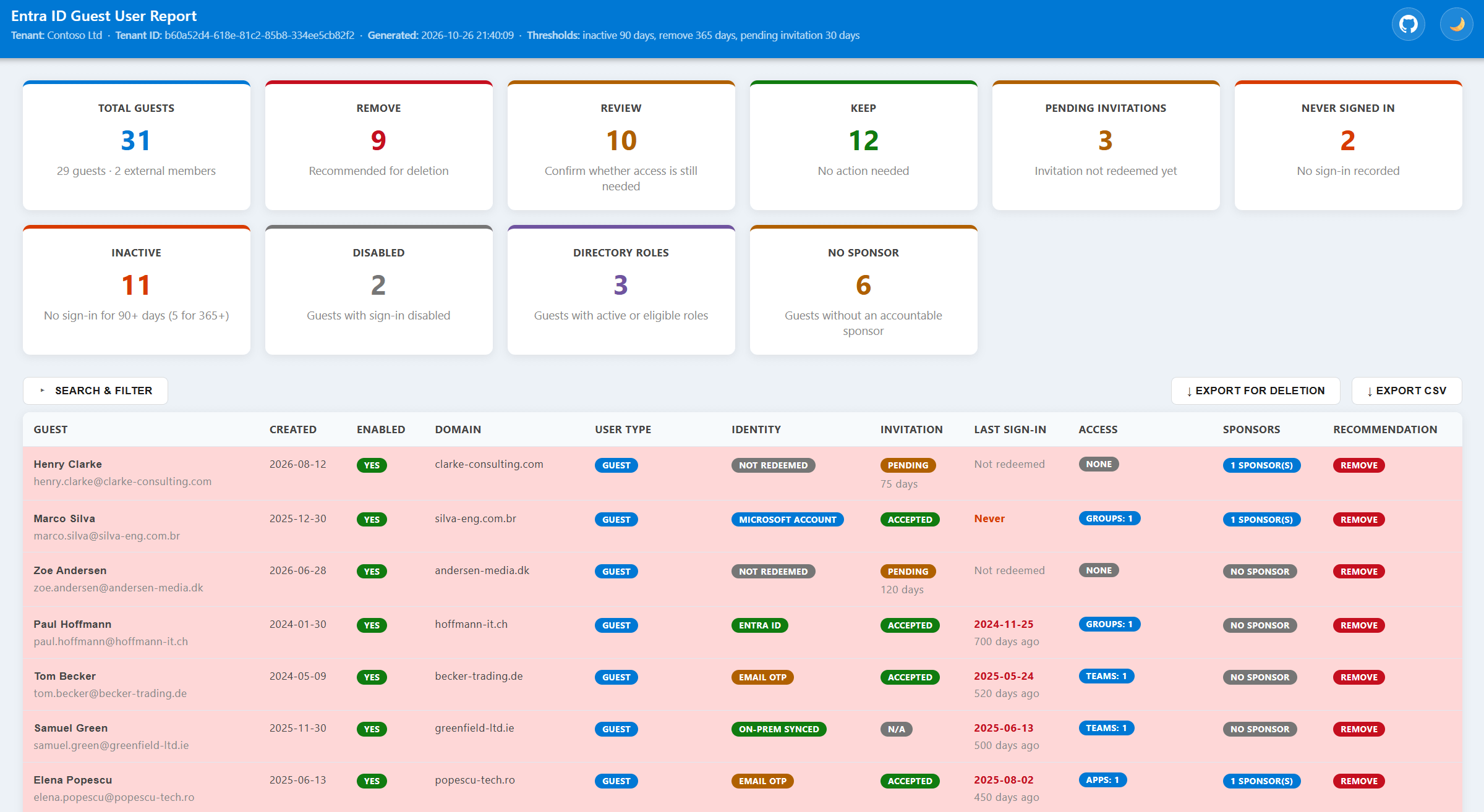
How the Cleanup recommendation works
The rules are simple. The thresholds are parameters, so you can change them.
A pending invitation for
-PendingInvitationDays(default 30) or more: Remove.No sign-in at all,
-InactiveDays(default 90) after the guest accepted the invitation or was created: Remove.No sign-in for
-RemoveAfterDays(default 365): Remove. No sign-in for-InactiveDays: Review.Guests created in the last 30 days: Keep. This is a grace period.
After these rules, a few extra signals can adjust the result:
A guest with a directory role (active or eligible) moves from Keep to Review.
A disabled and inactive guest moves from Review to Remove.
A guest synced from on-premises AD gets a note. The change must be made in AD.
The 30-day limits are my own defaults. They are not Microsoft guidance. Microsoft mentions 90 to 180 days as a reasonable time for inactive accounts, and my 90-day Review threshold follows that.
Start with the quick wins
The easiest guests to remove are those with a pending invitation older than your threshold, and those who have never signed in. Nobody uses these accounts. Start there.
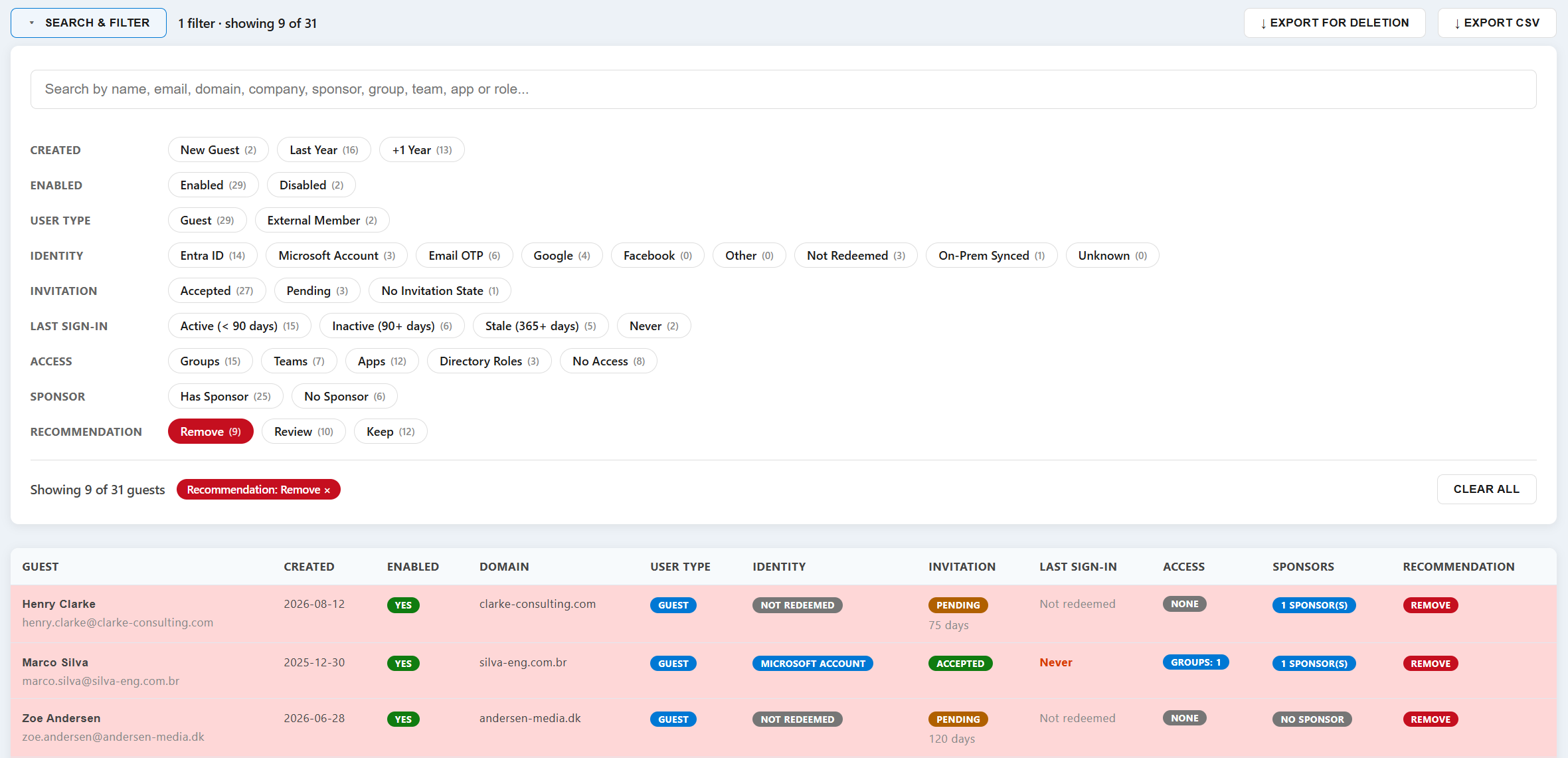
From report to deletion
The report never deletes anything. When the filters show the guests you want to remove:
Click Export for deletion. You get a file with Object IDs in the format that Entra bulk delete expects.
In the Entra admin center, go to Users > All users > Bulk operations > Bulk delete and upload the file.
The export skips on-premises synced guests and guests with directory roles. It tells you how many it skipped. Deleted users can be restored for 30 days.
You have a second option. Export CSV exports all visible rows with all columns. You can make your own deletion CSV from it and use it with PowerShell.
Run it on a schedule
You can run the script by hand. I recommend to run it automatically.
The included pipeline does this:
It runs every Monday at 06:00 UTC and on every push to
main.It signs in with a service connection and Workload Identity Federation. No secrets are stored.
It publishes the HTML report as an artifact and adds a summary tab.
It ends as SucceededWithIssues if a guest has a directory role.
The setup steps and permissions are in the README.
Performance
I tested the script in a tenant with around 10k guests. The default run took about 2 minutes. With -IncludeAccessDetails it took about 30 minutes, because it needs three Graph requests for each guest. The HTML report was still responsive.
With a much larger tenant, I expect the HTML to be slower. I cannot say where the limit is.
This also matters for the pipeline. The Graph token is valid for about one hour. That is why access details are off by default. Without them, the Access and Sponsors columns show a Not collected badge.
Limitations
The recommendation is a suggestion. Review the list before you delete anything.
Sign-in activity needs Entra ID P1 or P2. Without it, guests are marked Review.
Nested groups are not followed.
The script
Run it with the default settings:
.\Get-EntraIDGuestReport.ps1With all details (groups, Teams, apps, sponsors):
.\Get-EntraIDGuestReport.ps1 -IncludeAccessDetailsTo change the thresholds (Review after 60 days, Remove after 180 days, pending invitations after 14 days):
.\Get-EntraIDGuestReport.ps1 -InactiveDays 60 -RemoveAfterDays 180 -PendingInvitationDays 14As always, I am happy to get your feedback. If you find a bug, miss a signal or have an idea for the rules, please tell me.