

TL;DR
One script creates one interactive HTML report of all administrators in your tenant.
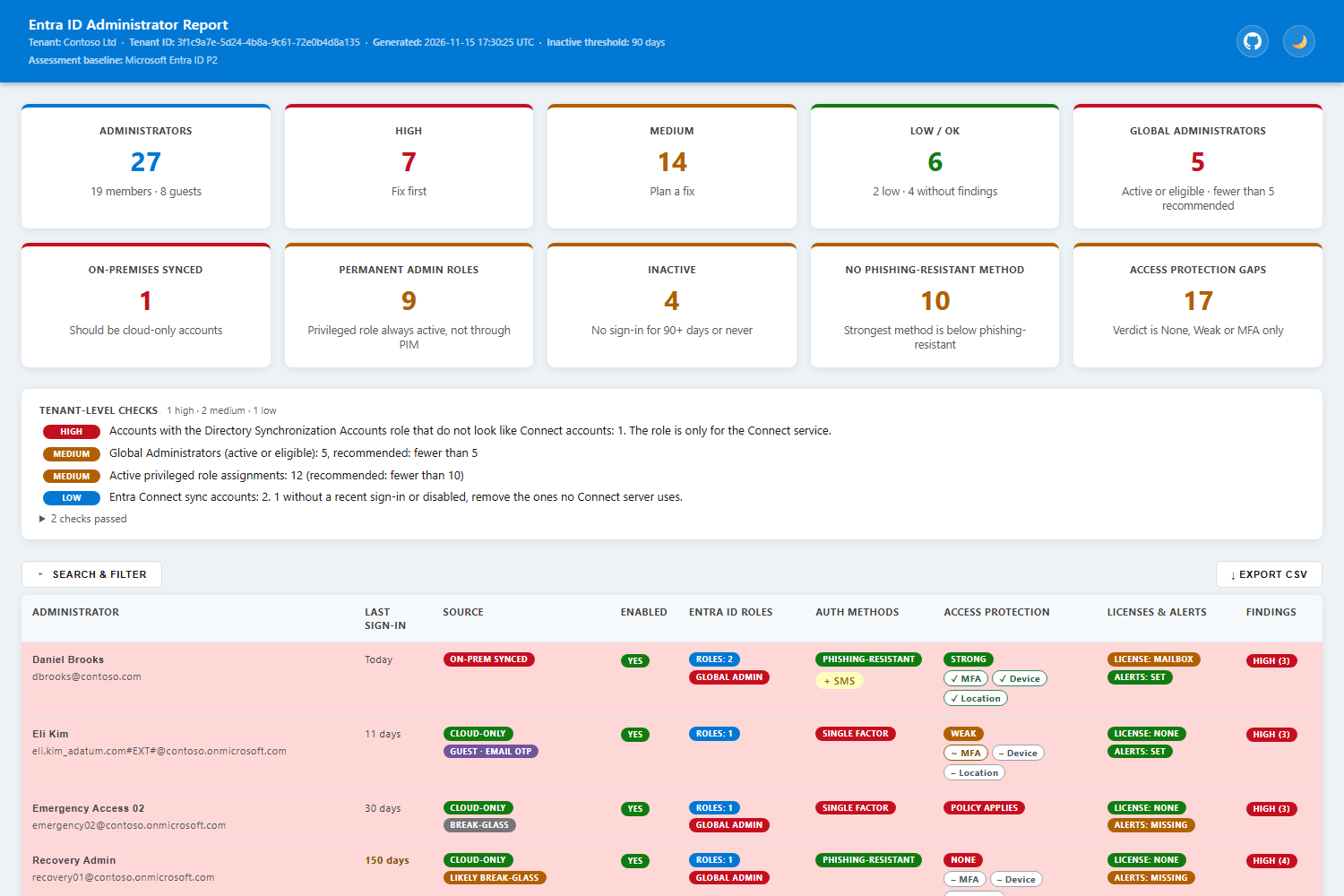
Each account gets a severity: High, Medium, Low or OK. Every finding has a recommendation.
It shows how “compliant” your admins are, not only who they are.
It is read-only and can run on a schedule in Azure DevOps.
Admin accounts are the first thing an attacker wants. One stolen admin session can undo most of the other security work in a tenant. Many organizations say “our admins have MFA” and stop there. But is it phishing-resistant MFA? Can the admin sign in from any laptop? Does the role need to be active all day?
I wanted to answer these questions quickly, so I built the Entra ID Admin Report. It is the third report in my set, after the Entra ID App Report and the Entra ID Guest Report. This is the last report I planned to build in 2026.
What I recommend for admin accounts
The report is built around the controls I think every tenant should have for admins today.
1. Conditional Access with phishing-resistant MFA. The policy should force Phishing-resistant MFA authentication strength. Before you turn it on, make sure admins have registered a passkey (FIDO2) or another phishing-resistant method. If not, you can lock yourself out. Start in report-only mode first.
Require phishing-resistant multifactor authentication for administrators | Microsoft Learn
2. Add a trusted device and/or trusted location. MFA alone is not enough if the admin works from a compromised laptop. Require a compliant or hybrid joined device and allow sign-in only from trusted locations. Even better: allow admin access only from a Privileged Access Workstation (PAW).
Require compliant or Microsoft Entra hybrid joined device for administrators | Microsoft Learn
3. Use cloud-only accounts. Admin accounts should not be synced from on-premises AD. If on-premises is compromised, the attacker should not get your cloud admins too.
Secure your Microsoft Entra identity infrastructure | Microsoft Learn
4. No mailbox or productivity licenses on admin accounts. Admins should use a normal account for email and Teams, and a separate account only for admin tasks. Microsoft says you don’t need to license admin-only accounts.
Admin account security in Microsoft 365 for business | Microsoft Learn
5. Least privilege and PIM. Give people the smallest role they need. If you have Entra ID P2, make roles eligible and activate them only when needed.
6. Review your admins regularly and remove the ones you don’t need. Unused roles and inactive admins are easy to forget. This is the part where the report helps most.
What the report checks
For every administrator, the report looks at:
Who is an admin. Direct role holders, members of role-holding groups (including nested), PIM for Groups, and owners of role-holding groups. Guests are included.
Account source. Cloud-only or synced from on-premises.
Auth methods. Each admin gets one badge: phishing-resistant, passwordless, MFA or single factor.
Access protection. The verdict is Strong, Good, MFA only, Weak or None, based on the Conditional Access policies that apply to the account.
Last sign-in. Inactive admins, 90 days by default.
Licenses and notification email. For example, an Exchange Online mailbox license on an admin account.
Standing roles. Roles that should be eligible in PIM.
Special accounts. Break-glass accounts and Entra Connect sync accounts are checked by their own rules.
The report is interactive. It has summary cards, filters, sorting, detail windows, and CSV export.
One parameter to understand: -LicenseBaseline
You choose Free, P1 or P2. The script does not detect your licenses. It checks only the controls your level can deliver. This way you don’t get a recommendation you cannot implement. For example, PIM checks need P2, and Conditional Access checks need P1.
Examples
Basic run with the Free baseline:
powershell
.\Get-EntraIDAdminReport.ps1 -LicenseBaseline FreeP1 with your break-glass accounts:
powershell
.\Get-EntraIDAdminReport.ps1 -LicenseBaseline P1 `
    -BreakGlassAccounts "bg01@contoso.onmicrosoft.com","bg02@contoso.onmicrosoft.com"
Need regular checks? The repo includes an Azure DevOps pipeline for scheduled runs.
Limitations
NOTE: The severities and the 4-hour sign-in frequency limit are my own choices, based on Microsoft Learn guidance.
It does not check PIM activation settings (MFA or approval on activation).
It is not a sign-in simulation. It reads Conditional Access policy settings. Report-only policies are not counted.
Device filters are not evaluated. The report can see a device requirement, but it cannot confirm that access is limited to PAW devices.
Auth methods show what is registered, not what was used at sign-in.
Per Microsoft Learn, Conditional Access policies are not enforced for administrative unit-scoped or custom roles.
Keep up with changes
I use all three reports regularly and will keep improving them. Please Watch the repositories on GitHub or fork them and use Sync fork to stay up to date.
Feedback
If you find a bug, a wrong finding or a missing check, please tell me. I’m happy to get your feedback, and I’ll add good ideas to the next version.